
Stems
Prisme separates a track into its parts so a deck can play each one at its own level: the vocals, the drums, the bass, and the melody (everything else). Mute the vocals for an instrumental, keep only the drums to mix over, or bring the bass of the next track in on the bar. Separation runs on your graphics card or your processor, in the background, and the stems are kept next to each track for the next time.
Install the models
Section titled “Install the models”Separation needs models, downloaded once from the Prisme releases. Two setups are offered, in Settings > Library > Separation:
| Choice | Model | Size | Gives |
|---|---|---|---|
| Quality | Vocals separation | 456 MB | Vocals and instrumental |
| Drums and bass separation (needs the vocals model) | 979 MB | Drums, bass and melody out of the instrumental | |
| Fast | Separation into stems | 91 MB | Vocals, drums, bass and melody from one small model |
Quality gives the cleanest stems and is the one to use with a graphics card worth it. Fast is several times faster, for a phone or a computer without one. With only the vocals model, tracks are split in two (vocals and instrumental); add the drums and bass model to split them in four.
-
Open Settings > Library.
-
Under Separation, choose Quality or Fast.
-
Press Download (… MB) on each model of that setup. The percentage shows the download; then the row reads Installed. A broken download resumes where it stopped.
If you have both setups installed, Prisme uses the one chosen under Separation; with only one, it uses that one whatever the choice.
Separate a track
Section titled “Separate a track”There are several ways, all of which put the track in the same background queue:
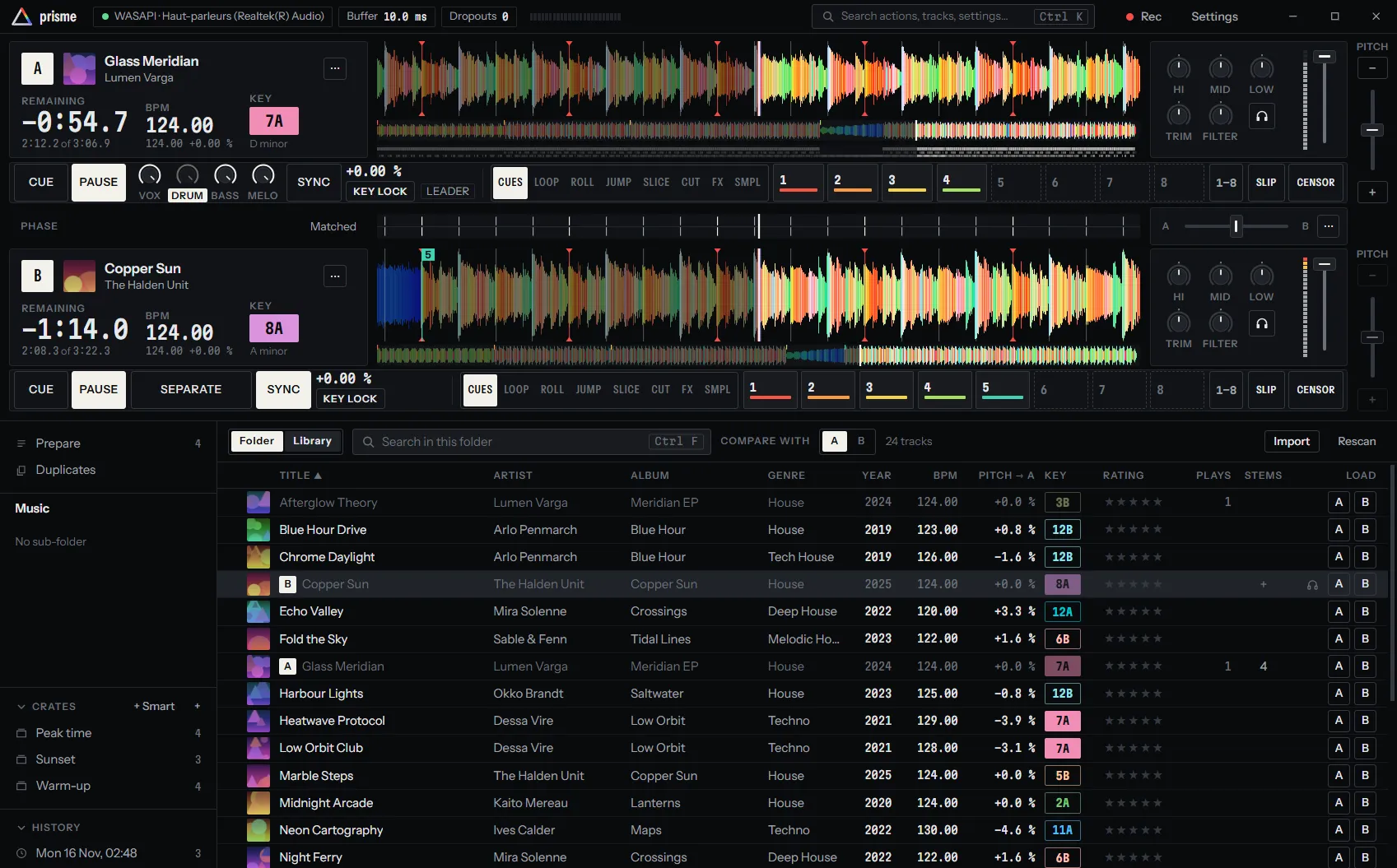
- On the deck: a deck whose track is not separated shows a SEPARATE key where the stem knobs go. Press it; its percentage shows how far it is.
- As you load it: with Separate the tracks as they are loaded or prepared on, a track loaded on a deck is separated at once, starting from where the deck plays, and a track added to the prepare list is separated in the background, ready before the set.
- In the library: the STEMS column has a + on each track that can be separated; right-click tracks for Separate the stems, or use Separate the stems in the bar of a selection.
- The whole library: Settings > Library > Separate the whole library > Separate.
The library’s status bar shows Separating 3 / 12 with a progress bar while the queue runs; hover it to see whether the graphics card or the processor does the work, and press Stop to empty the queue. A track loaded on a deck always goes first: a library track being separated gives way and starts again afterwards.
In the STEMS column, a track shows its percentage while it is separated, … while it waits, ✓ once its vocals are separated, and 4 once it is separated into four. A + on a track with a ✓ adds the drums and bass.
While the track plays
Section titled “While the track plays”A track separated as it plays gets its stems from where the deck is, first there and then ahead, so they come within seconds on a good graphics card. Until a part is separated where the deck plays, its knob is greyed out and the track plays whole there. Tracks longer than 20 minutes (a recorded mix, say) are not separated as they load; press SEPARATE or separate them from the library.
The stem knobs
Section titled “The stem knobs”Once a track is separated, its deck shows a knob per part on the rail, in place of the SEPARATE key:
| Separated into | Knobs |
|---|---|
| Vocals | VOX (vocals), INST (instrumental: everything else) |
| Four stems | VOX (vocals), DRUM (drums), BASS (bass), MELO (melody, the other instruments) |
- Turn a knob to set that part’s level, from silent to
100 %, as it is in the track. - Click its name to mute the part; click again to bring it back. A muted part keeps its level: its knob dims and its name lights.
The knobs come back to 100 % with each track you load.
On a phone, the deck’s STEMS key opens the same knobs. See On a phone.
Cuts on the bar
Section titled “Cuts on the bar”With Quantize on (Settings > DJ > Quantize), muting or bringing back a part waits for the next bar: press the name anywhere during a bar and the cut happens as the next one starts. The name blinks while it waits. A bar is four beats of the deck’s beat grid, so the grid must be right (see Analysis).
Turning a knob always acts at once. A deck that is stopped, or a track without a beat grid, cuts at once too.
From a controller, each deck has a key per part, Vocals, Instrumental, Drums, Bass and Melody (the other instruments), lit while the part plays, and a fader for each level (Vocals level and so on). See all actions.
The lanes
Section titled “The lanes”Under a separated track’s overview, thin lanes show where each part plays along the whole track: two lanes (vocals and instrumental) or four (vocals, drums, bass and melody). They show at a glance where the vocals come in, where the drums drop out, where the breakdown is. Click or drag along them to move in the track, as on the overview. The lanes appear once the whole track is separated.
Effects on a stem
Section titled “Effects on a stem”A deck’s effect chain can play on one part alone: an echo on the vocals only, a gate on the drums. See Effects on a stem.
Settings
Section titled “Settings”All in Settings > Library:
| Setting | What it does |
|---|---|
| Separation | Quality (the large models) or Fast (one small model). |
| Vocals separation, Drums and bass separation, Separation into stems | Download each model. |
| Hardware acceleration | Lets the graphics chip separate, many times faster than the processor. Greyed out with No graphics chip worth it here: the processor separates. when there is none. |
| Separate the tracks as they are loaded or prepared | Separates each track loaded on a deck right away, and each track put in the prepare list in the background. On at first with a graphics card, off without one. |
| Separate the whole library | Queues every track of the library that can be separated. |
Where the stems are kept
Section titled “Where the stems are kept”The stems are stored next to each track, in a .prisme folder, as FLAC files. Copy your music folder
to another computer and its separations come along: Prisme finds them and does not separate those
tracks again. On a phone, where nothing may be written beside the shared music, they go in Prisme’s
own folder instead.
The models themselves go in Prisme’s local data folder (on Windows,
%LOCALAPPDATA%\com.shawiizz.prisme\models), out of roaming profiles.
Performance tips
Section titled “Performance tips”- A graphics card makes the difference. On a recent one, a track takes a few seconds; on the processor alone, a few minutes. Prisme uses the graphics card through Vulkan, Direct3D 12 or Metal, with nothing to install, and its tensor cores where Vulkan reaches them. The models fit on a 4 GB card. Integrated graphics on a PC are left out, being slower than the processor; Apple’s and a phone’s are used.
- No graphics card? Choose Fast, and separate your crates before the gig: add the tracks to the prepare list, or run Separate the whole library overnight. On the processor, separation uses all the cores but two, at a low priority, so the sound comes first.
- Separate before the set. Separated tracks load with their stems at once, with nothing running in the background while you play.
- If the graphics card cannot be opened, or fails twice, Prisme goes on with the processor until you restart it.