
Browsing and searching
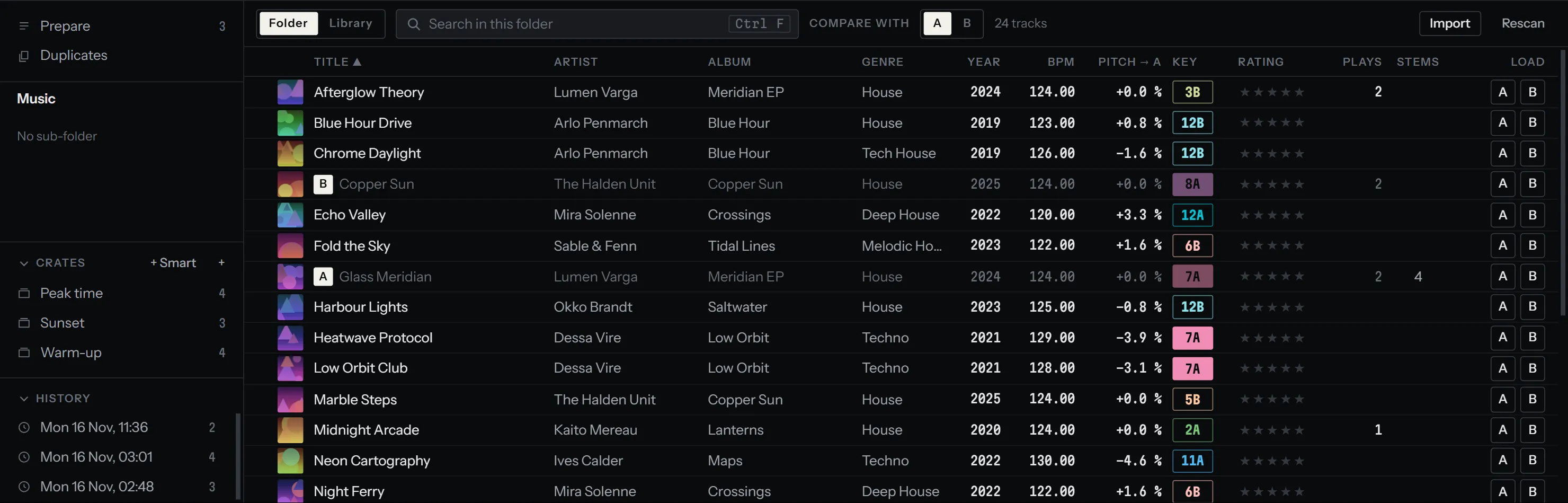
The library sits under the decks: the lists on the left (prepare list, folders, crates, history), the tracks of the open list on the right, with a toolbar above them. To give it the whole window, open the command palette (Ctrl K) and run The library over the whole window; run it again to bring the decks back.
The side panel
Section titled “The side panel”- Prepare: the tracks lined up for the next minutes of your set. See Crates, prepare list and history.
- Duplicates: tracks that look like the same song.
- Folders: the path from Music to the open folder, then its sub-folders. Click a sub-folder to open it, a part of the path to go back up. Prisme reopens the last folder you were in at the next start.
- Crates and History: click their title to fold them away.
Click any list to show its tracks on the right. Ordered lists (prepare list, a set of the
history, duplicates) get a # column with their own order.
Searching
Section titled “Searching”Press Ctrl F (⌘ F on a Mac) or click the search field, and type. Esc leaves the field.
The two buttons left of the field choose where you search:
| Button | Searches | How |
|---|---|---|
| The open list (Folder, Crate, Set, Prepare or Duplicates) | The tracks of that list | Each word you type must appear in the title, artist, album, genre or file name, in any order. daft around finds Around the World by Daft Punk |
| Library | Every analysed track | Words match the start of words in the same fields, accents ignored. Up to 500 results |
There is no special syntax: no quotes, fields or operators. Opening another list clears the search and goes back to searching that list.
The columns
Section titled “The columns”Right-click the column headers to choose which ones show; your choice is kept. All of them show at first.
| Column | Shows |
|---|---|
| Colour | The track’s colour; click the swatch to pick one of eight, or No colour |
| Cover | The cover art from the file’s tags |
| Title | The title tag, or the file name. A letter before it says which deck the track is loaded on |
| Artist, Album, Genre, Year | From the file’s tags |
| BPM | The tempo. ··· while the track waits for its analysis, — if it has none or could not be decoded |
| Pitch → A | The pitch that brings the track to the tempo of the deck you compare with (see below). Called Pitch to match in the column menu |
| Key | The key as a Camelot code (8A); hover it for its name. The chip is filled when it mixes with the key of the deck you compare with |
| Rating | Zero to five stars: click a star to rate, click the same star again to clear |
| Plays | How many times the track was played (see history) |
| STEMS | Whether the stems are separated, with a + to separate them. Called Separated stems in the column menu. See Stems |
The Title column is always there. The last column holds the preview key and a load key per deck.
Tracks you already played tonight are dimmed in every list, never hidden: you see at a glance what you should not play twice.
Sorting
Section titled “Sorting”Click a column title to sort by it, again to reverse the order. A ▲ or ▼ marks the sort.
Tracks without a value (no tag, no tempo) go last. Rating and Plays start with the
highest.
In an ordered list, click # to go back to the list’s own order. You can only reorder the
prepare list by dragging when it is sorted by #, first to last.
Compare with a deck
Section titled “Compare with a deck”Compare with in the toolbar picks a deck, A by default. The library then reads every track against what that deck plays:
- Key: the chip of a track is filled when its key mixes with the deck’s key as you hear it
now (the pitch, KEY LOCK and key shift taken into account). Compatible means the same
code, one step around the wheel with the same letter (
8Awith7Aor9A), or the same number with the other letter (8Awith8B). - Pitch → A: the change of tempo that would bring the track to that deck’s tempo, like
+2.4 %. Half and double tempos count: an 87 BPM track against a 174 BPM deck reads+0.0 %. The figure is dimmed when it is beyond the tempo fader range of the deck the track would go on (the other deck of the pair: B when you compare with A, D with C).
Click the Pitch → A title to sort by how well each track follows that deck. The order is, one criterion after the other:
- tracks not yet played tonight (nor the one on the deck);
- the harmony of the track’s key as it will sound once its tempo is matched (moved by the
pitch, unless KEY LOCK is on the other deck): compatible keys first, then an energy boost
(two steps up the wheel,
8Ato10A), then the others, then unknown keys; - a tempo your tempo fader reaches;
- the smallest pitch change.
The order is taken when you choose the sort, and again when a new track comes on the deck. It does not reshuffle while you ride the pitch.
Selecting tracks
Section titled “Selecting tracks”- Click a row to select it; ↑ and ↓ move the selection.
- Ctrl-click adds or removes a track, Shift-click selects a range, Ctrl A selects them all, Esc clears the selection.
With several tracks selected, a bar appears at the bottom of the list: Prepare, Crate, Colour, Genre and Separate the stems apply to all of them.
Loading a track
Section titled “Loading a track”| To | Do |
|---|---|
| Load on a given deck | Click its letter at the end of the row, or drag the row onto the deck |
| Load on the first empty deck (deck A if none is empty) | Double-click the row, or press Enter |
| Load the selected track on deck A or B | Shift ← or Shift → |
| Copy the other deck’s track, where it plays (instant double) | Ctrl Shift ← onto deck A, Ctrl Shift → onto deck B |
If the deck is playing, Prisme asks before replacing its track, or refuses if you turned on Never replace a playing deck. See Playing a track.
To hear a track before loading it, click the headphones key on its row or press Space: it plays in your headphones only, from about a third in. See Headphones and preview.
Drag and drop
Section titled “Drag and drop”Drag a row, or a selection, onto:
- a deck, to load it (the first track of the selection);
- Prepare in the side panel, to add the tracks to the prepare list;
- a crate in the side panel, to add them to it (not a smart crate, which picks its own tracks);
- another place in the prepare list, while you browse it, to reorder it.
The track menu
Section titled “The track menu”Right-click a track (or the selection) for its menu:
| Item | Does |
|---|---|
| Load on deck A, B… | Only with one track selected |
| Add to the prepare list | Also Ctrl P |
| Add to a crate | Lists your crates, smart crates aside |
| Colour | Eight colours, or No colour |
| Genre | Type a genre, or pick one your library already has. The field starts with the genre the tracks share, else with the name of their folder. Apply writes it into the files’ tags; No genre removes it |
| Separate the stems | Or Separate the stems…, which opens the settings to download the models first. Not on a phone. See Stems |
| Remove from the crate / Remove from the prepare list | Only in a crate or the prepare list; also Delete. The file is never touched |
Keyboard shortcuts
Section titled “Keyboard shortcuts”| Keys | Action |
|---|---|
| Ctrl F | Search |
| ↑ ↓ | Previous or next track |
| Enter | Load on a free deck |
| Shift ← / Shift → | Load on deck A / deck B |
| Ctrl Shift ← / → | Instant double on deck A / deck B |
| Space | Preview in the headphones / stop |
| Ctrl P | Add to the prepare list |
| Delete | Remove from the crate or prepare list |
| Ctrl A | Select all the tracks |
| Esc | Clear the selection |
These are the keys Prisme starts with; you can change them. On a Mac, ⌘ takes the place of Ctrl. The full list is in Keyboard and command palette. A controller’s browse knob, load buttons and list buttons work the same way: see the Actions reference.
On a phone, the library has its own layout, made for a finger: see Phone and tablet.