
Troubleshooting
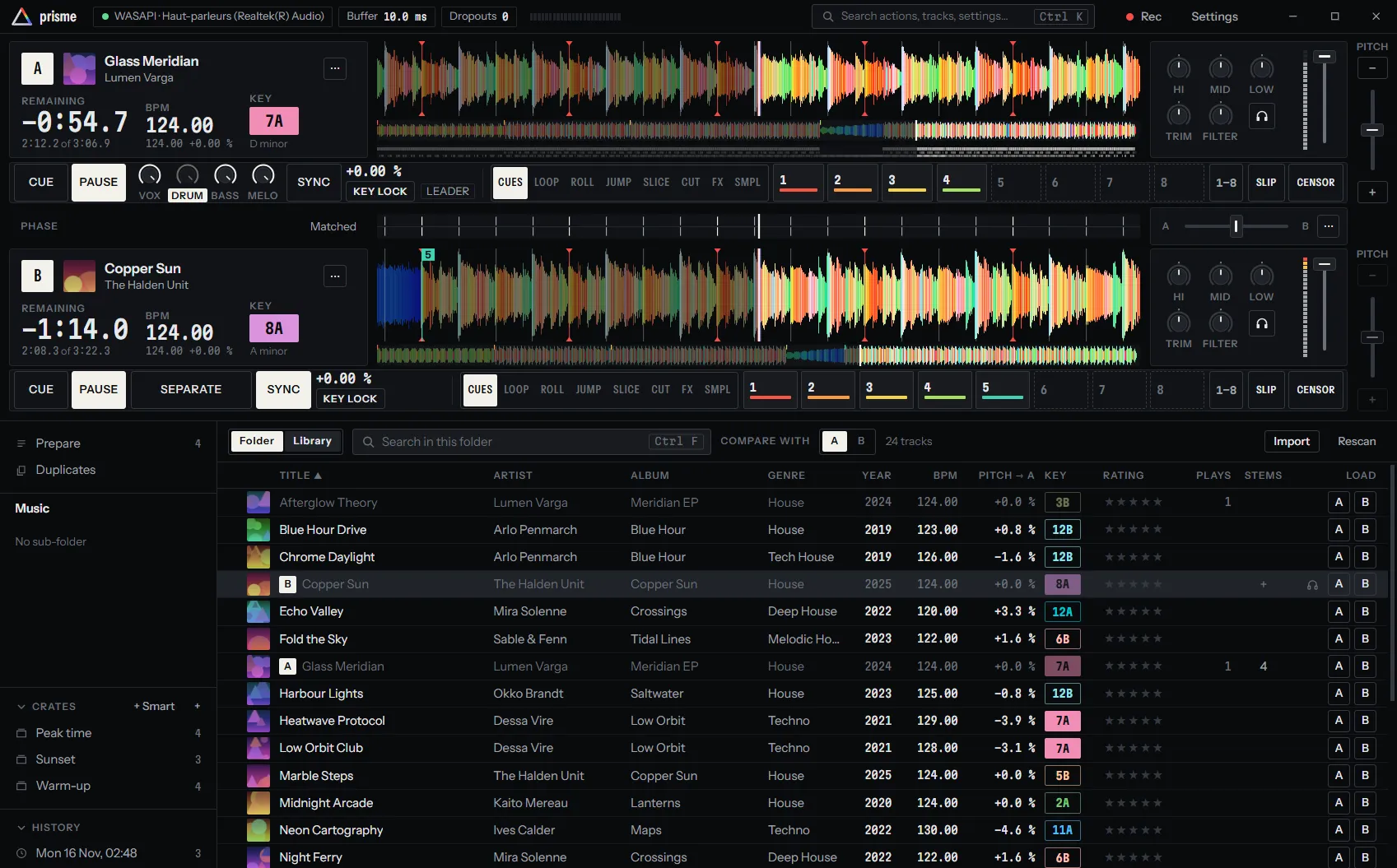
Prisme is built so that the music does not stop: the audio restarts by itself after a device loss or an engine failure, and the decks come back after a crash. When something still goes wrong, the title bar usually says so first. This page goes through what it can say, and what to do. For problems with timecode records, see Timecode troubleshooting.
The title bar
Section titled “The title bar”At the left of the title bar, a row of chips tells how the audio is doing:
| Chip | Meaning |
|---|---|
| The driver and the device, such as ASIO · UMC404HD | The audio runs on that device. |
| Buffer with a length in ms | The length of an audio period, as the driver calls the engine. |
| Dropouts with a number | Periods processed too late since the audio started: each one is an audible click. Hover it for the slowest period. |
| simulated turntable, or 4 input ch | Where the turntables are read from. |
| audio device lost, reconnecting… | The device went away; Prisme is bringing the audio back. |
| audio stopped | No audio is running. |
| audio engine error | The engine failed and could not be restarted. |
| library not saved | The library could not be opened: cues, corrections and crates changed now are lost at exit. |
| External mixer needs 4 outputs | Each deck needs its own pair of outputs, and the device does not have them. |
Audio dropouts
Section titled “Audio dropouts”Clicks, crackles or short gaps in the sound, and the Dropouts counter climbing. Each dropout is a period the computer did not finish in time.
- Raise the buffer. In Settings, Audio, Buffer, take the next size up, press Apply, and play for a while. Hover the Dropouts chip: it shows the slowest period; if it comes close to the length of a period, the buffer is too small for this computer.
- Use the fastest driver. On Windows, ASIO usually holds a smaller buffer than WASAPI. On Linux, JACK (PipeWire included) rather than ALSA through the sound server.
- Leave the processor to the sound. Keep Pause the analysis of the library while a deck plays on (Settings, Library). Separating stems on the processor alone, with no graphics chip to do it, takes a lot of it: separate before the set rather than during it.
- Plug in the charger. On battery, a laptop may slow its processor down. Choose the high-performance power mode of your system.
- Close what you do not need. Browsers, video calls and other audio software compete for the processor, and some for the sound card.
- Plug the interface into the computer directly, rather than through a hub.
The audio device is lost
Section titled “The audio device is lost”When the interface is unplugged, switched off or its driver resets, the title bar shows audio device lost, reconnecting…. Prisme tries again at once and several times within the next second, then every two seconds. As soon as the device is back, the audio restarts with the decks where they were, playing if they were.
If the interface you chose is missing when Prisme starts, it plays on the system’s default device meanwhile, keeps your choice in the settings, and moves to your interface as soon as it appears.
The audio engine error
Section titled “The audio engine error”audio engine error means the audio engine failed. Prisme restarts it by itself, up to three times a minute; beyond that the failure would only come back, so it stays silent. Open Settings, Audio, change nothing and apply again, or choose another buffer or driver and press Apply. Then save a diagnostic report (see below) and send it: this should not happen.
No sound, or audio stopped
Section titled “No sound, or audio stopped”- audio stopped: the audio could not start. Open Settings, Audio, choose the Output (or another Driver type) and press Apply. If it fails, the reason shows at the bottom of the page.
- The audio runs but nothing is heard: check Mixing in Settings, Mixing. With External mixer, deck A plays on outputs 1-2 and deck B on 3-4, into a hardware mixer; with nothing plugged into those outputs you hear nothing. With Software mixer, the master is on outputs 1-2.
- On Android, if Prisme was not allowed to listen to the inputs, the settings say allow Prisme to listen to the inputs of the sound card, then apply again.
After a crash
Section titled “After a crash”While Prisme runs, it notes every few seconds which track each deck holds and where. If it did not close normally, the next start loads those tracks again on their decks, at the position they had, stopped. Your settings, cues, crates and library are saved as you go and are not affected.
The library is not saved
Section titled “The library is not saved”library not saved in the title bar means the library database could not be opened, so Prisme works from memory: the cues, grid corrections and crates you change now are lost when you quit. Quit and start Prisme again; if it persists, make sure the data folder (see Where Prisme keeps its files) is writable and the disk not full, and send a diagnostic report.
Analysis is slow
Section titled “Analysis is slow”The library shows Analysing with a count while it works out tempo, beat grid and key in the background. With Pause the analysis of the library while a deck plays on, it reads Analysis paused while a deck plays and Goes on once the decks stop. That is on purpose, to keep the processor for the sound. A track you load is analysed as it loads, whatever the queue.
To let the analysis run, stop the decks, or turn that setting off when you are not playing. See Analysis.
Stem separation is slow
Section titled “Stem separation is slow”The library shows Separating with a count while stems are separated; hover it to see what does the work, a graphics chip or the processor.
- On a graphics chip, a track takes seconds. Check that Hardware acceleration is on in Settings, Library. If it reads No graphics chip worth it here: the processor separates., the computer has none Prisme can use.
- On the processor alone, a track takes minutes. Switch Separation to Fast: one small model, several times faster. Its stems are not as clean.
- Drums and bass take two to three times as long as the vocals alone.
- Separate before the set: Separate the whole library, or put the tracks in Prepare with Separate the tracks as they are loaded or prepared on.
See Stems.
A controller is not seen
Section titled “A controller is not seen”- It is not in the list: Prisme reads No MIDI controller plugged in. Plug it in, switch it on if it has a power switch, and press Refresh. Try another USB port or cable, and plug it into the computer directly rather than through a hub.
- It is listed but does nothing: turn on its switch in the list.
- Another program holds it: on Windows, a MIDI port can be opened by one program at a time. Quit other DJ software and MIDI tools, then switch the controller off and on again in the list.
- It is not mapped: a model Prisme knows reads Mapped as a… under its name. Another needs its controls learnt: see MIDI learn. Prisme fetches new profiles once a day; Look for updates fetches them now.
- Some controls do the wrong thing: profiles marked Converted from the mapping of Mixxx, not yet tried on this controller may need a correction. Learn the control again, and see Profiles to share the fix.
Logs and the diagnostic report
Section titled “Logs and the diagnostic report”Prisme writes a log, one file per day, keeping the last seven days. To send it with what surrounds it, use the diagnostic report:
- Open Settings, About.
- Press Save a diagnostic report… and choose where to save it. The button then reads Report saved.
The report is a plain text file holding the version of Prisme and of your system, the audio settings you saved and those running, the audio devices and their health (dropouts, the slowest period, device losses), the controllers in use, and the last 400 lines of the log. Read it before you send it: the log names the files you played.
The log files themselves are in:
| System | Log folder |
|---|---|
| Windows | %LOCALAPPDATA%\com.shawiizz.prisme\logs |
| macOS | ~/Library/Logs/com.shawiizz.prisme |
| Linux | ~/.local/share/com.shawiizz.prisme/logs |
Where Prisme keeps its files
Section titled “Where Prisme keeps its files”Your settings (preferences.json), your controllers and what you mapped
(controllers.json), the library (library.sqlite) and your own controller profiles (the
controllers folder) are in the data folder:
| System | Data folder |
|---|---|
| Windows | %APPDATA%\com.shawiizz.prisme |
| macOS | ~/Library/Application Support/com.shawiizz.prisme |
| Linux | ~/.local/share/com.shawiizz.prisme |
Separated stems are not there: they sit next to each track, in a .prisme folder.
Report a problem
Section titled “Report a problem”Open an issue on GitHub with what you did, what you expected, what happened, and the diagnostic report attached.