
Tempo, beat grid and key
Every track in your music folder is analysed once, in the background (see Adding your music). The analysis gives it a tempo, a beat grid and a musical key. They are what sync, quantize, the Auto DJ and the library’s key and pitch columns work from, so a wrong grid is worth fixing: it takes a few seconds and is kept for good.
What the analysis finds
Section titled “What the analysis finds”Tempo and beat grid. Prisme looks for a steady tempo across the whole track, to about a thousandth of a BPM, and rounds it to a whole BPM when that fits as well (tracks made in a DAW usually have one). It then lays a grid of beats over the track, sitting on the kicks. The grid is drawn on the waveform: a fine line on each beat, a red one with small arrows every fourth beat.
- The grid has one tempo for the whole track. That suits most electronic music. A track that speeds up or slows down, or was played by a live drummer, will drift off its grid.
- The tempo is reported between 88 and 176 BPM. That range holds house, techno and drum and bass at their usual tempo, but a hip-hop track at 85 BPM shows as 170, and a 180 BPM track as 90. Fix it with ÷2 or ×2 (below).
- Tracks shorter than 10 seconds get no tempo.
Key. Prisme listens to the harmony of the whole track, after correcting for a track tuned a
little off concert pitch, and picks the most likely of the 24 major and minor keys. The key
shows as a Camelot code: numbers 1 to 12 around the wheel, A for minor and B for major
(8A is A minor, 8B C major). Hover a key in the library for its usual name.
Like any key detection, it can confuse a key with a close one, most often its relative major or
minor (8A and 8B), or the key a fifth away (8A and 9A). Those mix together anyway; when
your ears disagree, correct it.
Correcting the grid and the key
Section titled “Correcting the grid and the key”Corrections are made on a deck, with the track loaded.
-
Load the track and click the BPM and Key readouts on the deck (Beat grid, key and key shift). On a phone, open the deck’s panel and tap Grid and key.
-
Fix what is wrong with the controls below. Each change applies at once, to every deck the track is loaded on.
-
Close the panel by clicking outside it.
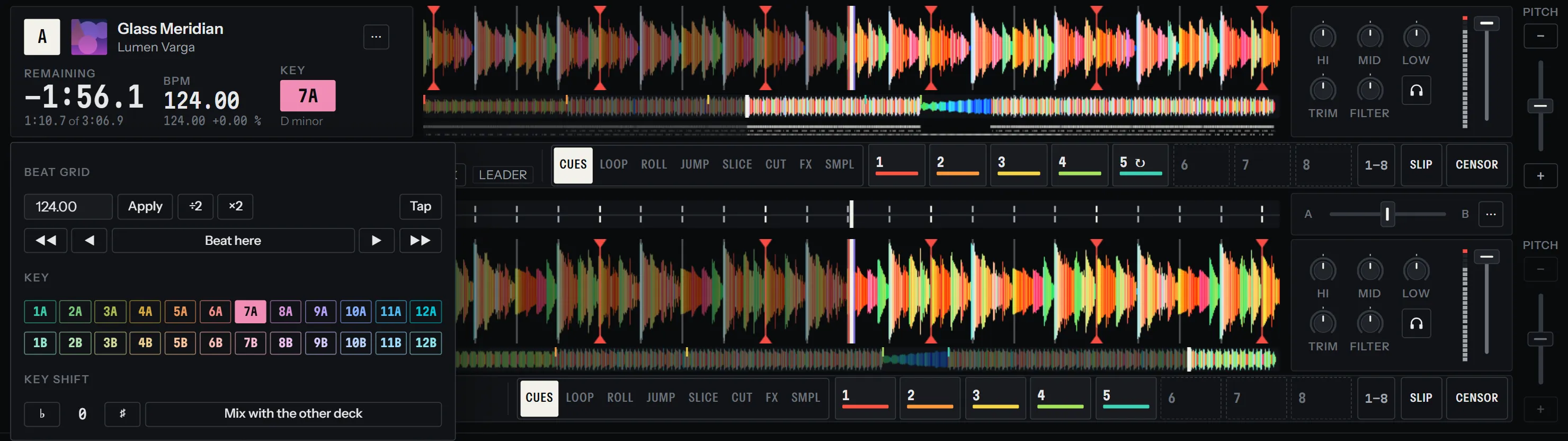
Beat grid
Section titled “Beat grid”| Control | What it does |
|---|---|
| BPM field and Apply | Sets the tempo you type (40 to 300 BPM), keeping the first beat where it is. Enter applies too |
| ÷2 / ×2 | Half time / Double time: the tempo divided or multiplied by two |
| Tap | Tap it in time with the music: after four taps the tempo you tap shows in the field. Click Apply to keep it |
| ◀◀ / ▶▶ | Moves the whole grid 20 ms earlier or later |
| ◀ / ▶ | Moves the whole grid 2 ms earlier or later |
| Beat here | Moves the grid so that a beat falls exactly where the deck is now |
| Reset | Back to the analysed grid. Shown once you changed it |
A good way to fix a grid that is off:
-
Check the tempo first. If the lines drift away from the kicks along the track, the tempo is wrong: tap it, or type it if you know it, and Apply.
-
Pause on a kick at the start of a bar, close to the line it should be on. Click Beat here.
-
Play a few bars further on and listen with the waveform zoomed in. Nudge with ◀ and ▶ until the lines sit on the kicks.
If the analysis found no tempo at all, typing one creates a grid from the start of the track: then use Beat here to put it on the beats.
The panel shows the 24 keys, minor (A) on one row, major (B) on the other, the current one
filled. Click the right one. Reset (Back to the detected key) undoes your choice.
The Key shift section of the same panel transposes the track as it plays, without changing its key in the library: see Tempo, sync and key.
What happens to a correction
Section titled “What happens to a correction”- A dot after the BPM or Key label on the deck tells you the grid or the key was corrected by hand.
- Corrections are kept in the library, apart from the analysis: analysing the file again never undoes them. They follow the file if you move or rename it.
- The library’s BPM and key columns, the smart crates and the sorts use the corrected values.
- If Write the tempo and key into the tags of the files is on, the corrected tempo and key are written into the file too (see Adding your music).
- A beat grid imported from Serato or rekordbox counts as a correction: Reset takes you back to Prisme’s own grid.
What relies on the grid
Section titled “What relies on the grid”| Feature | Uses |
|---|---|
| Quantize (Settings › DJ, on by default) | Cues, loops and jumps land on the beat; stems are cut and brought back on the bar; sampler pads start on the next beat |
| Sync | Matches the tempo, and lines the beats up with the other deck. See Tempo, sync and key |
| Beat loops, rolls and jumps | Their length in beats. See Loops, rolls and jumps |
| Beat-synced effects | Their timing. See Effects |
| Auto DJ | Where a mix starts (on a phrase), and how long it lasts in beats |
| The library’s Pitch → A column | The tempo of each track |
Without a grid, quantize has nothing to snap to: cues and loop points go exactly where you press. That is why a track whose tempo the analysis could not find is worth a grid typed by hand.