
Playing a track
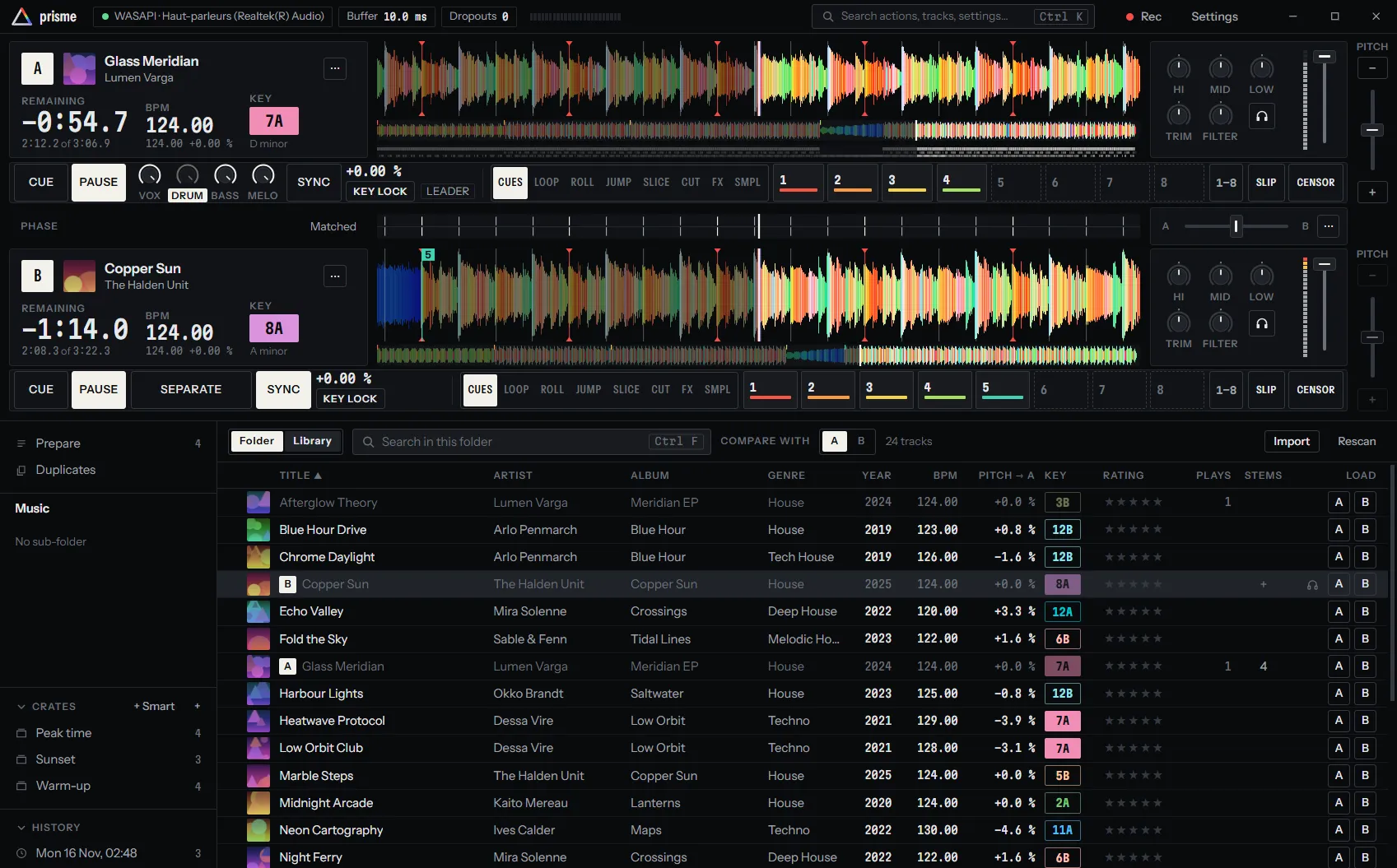
Each deck is one band across the window: its panel on the left, the waveform in the middle, the tempo fader at the end where a turntable has it. Under them, a rail holds the transport, the stems, SYNC, the pitch and the pads. This page covers what a deck does when you play it by itself, without a record. With a timecode record, the turntable drives the deck instead: see Vinyl control modes.
Load a track
Section titled “Load a track”You can put a track on a deck in several ways:
| How | Where it goes |
|---|---|
| Drag a track from the library onto a deck | That deck (the deck is outlined while you drag over it) |
| Click A or B in the LOAD column of a track | That deck |
| Load on deck A in a track’s menu (right click) | That deck |
| Double-click a track | The first empty deck, or deck A if none is empty |
| Shift ← / Shift → | The selected track on deck A / deck B |
| Enter | The selected track on the first empty deck, or deck A |
| In the command palette, Alt A / Alt B on a track | Deck A / deck B |
The deck shows Loading… while the file is read, then its cover, title and artist. A new track always starts at its beginning, stopped, and the deck forgets the previous track’s loop and SYNC. Its tempo fader, KEY LOCK and SLIP stay as you set them.
If the deck is playing, Prisme asks before it replaces the track: Deck A is playing, with Load and Cancel. To make a playing deck untouchable during a set, turn on Never replace a playing deck in Settings › DJ: a load onto a playing deck is then refused with a message instead of asked about.
The BPM and key appear once the track is analysed. A track analysed for the first time when you load it shows — for a moment; see Analysis.
Play, pause and cue
Section titled “Play, pause and cue”The rail starts with CUE and PLAY. PLAY starts the deck and becomes PAUSE while it plays. CUE works as on a CDJ:
| When you press CUE | What happens |
|---|---|
| The deck is playing | It goes back to the cue point and stops |
| The deck is stopped on the cue point | It plays while you hold CUE, and goes back to the cue point when you let go, unless you pressed PLAY meanwhile |
| The deck is stopped anywhere else | The cue point moves there |
To set a cue point and start the track from it:
- Press PLAY and let the track run to the bar you want to start from, then press PAUSE. You can also click the waveform to get there.
- Press CUE: the cue point is set there.
- Hold CUE to hear the start; let go and the deck goes back to the cue point.
- When it is time, press PLAY.
With quantize on, the cue point lands on the nearest beat and the deck moves onto it. A track without a cue point cues from its very start. The cue point is saved with the track in your library, and shows on the waveform as a flag marked C. More in Cues and hot cues.
| Key | Deck A | Deck B |
|---|---|---|
| CUE (hold to preview) | A | J |
| PLAY / PAUSE | S | K |
Keys are named as on a US QWERTY keyboard; Prisme reads their position, so on another layout use the key in the same place. Decks C and D take the keys of A and B with Shift held. The full list, and how to change a key, is in Keyboard shortcuts.
Move around the track
Section titled “Move around the track”The waveform has two parts: the scrolling view around the playhead, and the overview of the whole track under it.
- Click the scrolling view to jump to that point.
- Click or drag along the overview to go anywhere in the track: the deck follows your pointer as a record under a hand.
- Slide the scrolling view at once to nudge the track, as the edge of a jog wheel: a playing track is pushed ahead or held back for a moment, a stopped one moves.
- Press and hold still on the scrolling view for a moment, then move: your hand is on the record, and the deck plays through your motion like a scratch. Let go and it plays on.
On a touch screen, a tap on the scrolling view does not jump, so a finger resting on it by mistake cannot move the track.
The readouts
Section titled “The readouts”Three readouts sit in each deck’s panel, big enough to read from a step back.
REMAINING is the time left, −2:15.7, with the elapsed time and the length under it
(1:23.4 of 3:39.1). While the deck plays, it turns amber for the last 30 seconds, then red and
blinking for the last 10.
BPM is the tempo you hear: the track’s tempo times the pitch. Under it, the track’s own tempo
and the pitch applied to it (124.00 +1.20 %). A dot after the BPM label (BPM •) tells
you the beat grid was corrected by hand.
KEY is the key you hear, as a Camelot code in the colour of its place on the wheel, with its
name under it (8A, A minor). Without KEY LOCK, the pitch moves the key with the tempo,
and the readout follows: the KEY label turns amber when the pitch or a key shift moved the
key away from the track’s. A dot after it means the key was chosen by hand. See
Tempo, sync and key.
With four decks, the panels are on one line and the readouts lose their labels.
Click the BPM or KEY readout to open Beat grid, key and key shift: correct the tempo and the grid, choose the key by hand, or transpose the track. The grid and key corrections are explained in Analysis, the key shift in Tempo, sync and key.
The deck menu
Section titled “The deck menu”The ⋯ button at the top right of the panel opens what a deck does now and then. Each row acts at once.
| Row | What it does |
|---|---|
| Motor: BRAKE, SPINBACK | Stops the deck as a turntable switched off, or spins the record back while held. See Brake and spinback. |
| Jump to: START, END | START goes to the start of the track, playing or not as it was. END goes to the very end: a playing deck stops there, or starts again with Repeat the track. |
| Reverse | The track plays backwards. See Reverse. |
| Mute the channel | The deck is silent in the master but still heard in the headphones. |
| Repeat the track | At the end, the track goes on from its start without a gap. |
| Tempo fader range | ±8, ±16 or ±50: the travel of this deck’s tempo fader. See Tempo range. |
| Fader start | With the software mixer only: raising the channel fader plays the deck, closing it stops it on its cue point. See Fader start. |
While the track plays backwards or the channel is muted, a REV or MUTE key lights beside ⋯, so you cannot forget it: press it to turn it off.
BRAKE and SPINBACK are greyed out while a record drives the deck. START and END are greyed out in absolute mode, where the record decides where the track is.
Reverse, Mute the channel and Repeat the track last until you quit. KEY LOCK, the tempo fader range and Fader start are kept for the next start.
Instant doubles
Section titled “Instant doubles”An instant double puts the track of the other deck of a pair on this one, at the same place: same position, playing or not, the same loop. Decks pair as A with B, and C with D. During a roll or a censor, the double takes the place the track will come back to.
| Key | What it does |
|---|---|
| Ctrl Shift ← | Deck A takes deck B’s track |
| Ctrl Shift → | Deck B takes deck A’s track |
On a Mac, use ⌘ instead of Ctrl. Instant double on deck A (and on the other decks) is also in the command palette and can be mapped on a controller. As with any load, Prisme asks first if the deck you double onto is playing.
Eject a track
Section titled “Eject a track”To take a track off a deck, run Eject the track from the command palette (Ctrl K, then type “eject”), or map it on a controller. A playing deck asks first. Loading another track also replaces the current one, so you rarely need to eject.
Other actions for keys and controllers
Section titled “Other actions for keys and controllers”These have no button on the deck. You can map them on a controller (see Actions), and run the buttons among them from the command palette:
| Action | What it does |
|---|---|
| To the cue and play, To the cue, stopped, To the cue | Go to the cue point, then play, stop, or keep playing or not |
| The cue here | Sets the cue point where the deck is, without stopping it |
| To the start and play, To the start, stopped, To the start, To the end | As START and END in the menu, with a choice of what follows |
| Run through the track while held, Run back through the track while held | Searches forwards or back at eight times the speed |
| Place in the track (a touch strip) | Puts the deck anywhere in the track, as the overview does |