
Microphone, aux and booth
The software mixer can take two live sources from your sound card, a microphone and an aux line (a phone, a CD player, a second mixer), and mix them into the master. It can also send the master to booth monitors on an output pair of their own, at their own level.
Which inputs are free
Section titled “Which inputs are free”Prisme keeps an input pair for each deck’s turntable: inputs 1-2 for deck A, 3-4 for deck B, and so on as far as the device goes. A microphone or an aux line can only use the inputs after those. On a DJ interface with four inputs and two decks, there are none left; with six inputs, 5-6 are free.
If every input is taken, the settings say The turntables take every input of this device., and the choice is greyed out.
Microphone
Section titled “Microphone”-
Plug the microphone into a free input of your sound card.
-
In Settings > Mixing > Microphone, choose its input: a single input (Input 5), heard in the middle of the stereo, or a pair (Inputs 5-6).
-
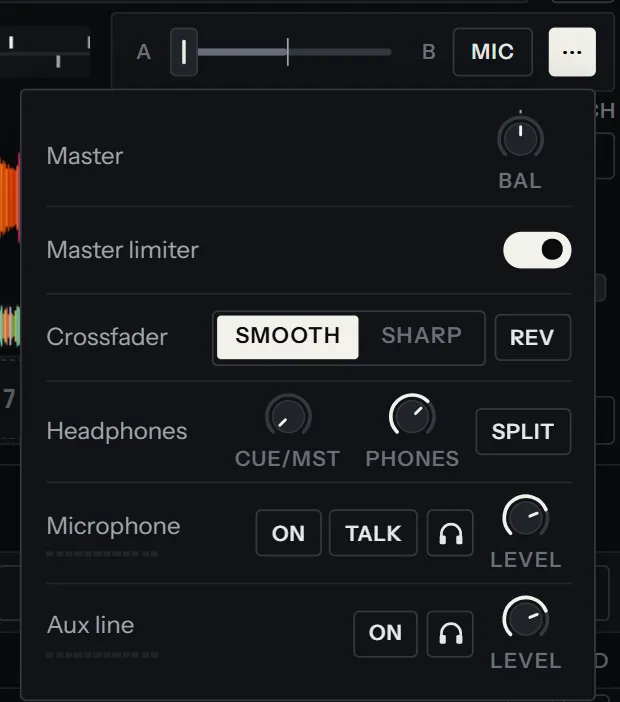
Close the settings. A MIC key now sits at the end of the crossfader, and the mixer’s menu (the ⋯ key beside it) has a Microphone row.
-
Press MIC to open the microphone into the master. Press it again to close it.
The Microphone row of the mixer’s menu holds:
| Control | What it does |
|---|---|
| Meter | The microphone’s level, after its LEVEL knob, even while it is closed. |
| ON | Opens the microphone into the master, like the MIC key. |
| TALK | Talkover on or off (see below). |
| Headphones key | Hears the microphone in the headphones, open or not, to check it before you talk. |
| LEVEL | Silent fully left, 0 dB at three quarters of the way, +12 dB fully right. |
The microphone is closed and out of the headphones each time Prisme starts, so it never comes on by surprise. Its input and its level are kept.
Your voice goes in and out of the sound card through Prisme, so it reaches the speakers as late as that round trip. Keep the buffer small (see Audio setup) if you talk a lot over the music. You do not hear the microphone in the master of your headphones, only when you cue it.
Talkover
Section titled “Talkover”Talkover turns the music down while the microphone is open, and back up when you close it, so you can talk over the music without reaching for a fader.
- In the mixer’s menu, press TALK on the Microphone row. Its tooltip on the MIC key then reads Microphone on / off: the music ducks while it is on.
- Choose how far the music goes down in Settings > Mixing > Talkover: −6 dB, −12 dB, −18 dB (the default) or −24 dB.
The music ducks in a tenth of a second when you open the microphone and comes back over about half a second when you close it. Everything but the microphone ducks: the decks and the aux line. Talkover stays on from one session to the next.
Aux line
Section titled “Aux line”The aux line brings a stereo source into the master: a phone or a laptop for a guest DJ, a CD player, the output of another mixer.
- Plug the source into a free input pair.
- In Settings > Mixing > Aux line, choose the pair (Inputs 5-6…). The aux line takes pairs only.
- Open the mixer’s menu: the Aux line row has its meter, ON, a headphones key and LEVEL, as the microphone’s.
Press ON to bring it into the master. The aux line goes into the master like a deck: it is limited with it, recorded with it, heard in the booth, and ducked under the microphone when talkover is on. It is not on the crossfader.
If the microphone and the aux line need the same inputs, each list only offers what the other leaves. A source set on inputs the current device does not have shows Not on this device. and comes back when you plug that device in again.
Booth output
Section titled “Booth output”Booth monitors play the master on a pair of outputs of their own, at a level you set apart from the room’s.
-
Plug the booth monitors into a free output pair of your sound card.
-
In Settings > Mixing > Booth, choose that pair (Outputs 5-6…). Outputs 1-2 are the master’s and the headphones’ pair is theirs: neither is offered. If you move the headphones onto the booth’s pair, the headphones win: the booth’s choice shows as Outputs 3-4: the headphones, greyed out, and the setting says Not heard: the headphones are on outputs 3-4. Choose another pair for the booth. A pair the current device does not have shows Not on this device.
-
Set the level with the BOOTH knob, on the Master row of the mixer’s menu. It goes from silence to 0 dB, the master’s own level.
The booth gets the master after the master limiter, without the BAL balance: you can lean the room’s speakers to one side and keep the booth centred. The Booth setting only appears when the device has an output pair beyond the master’s.
From a controller
Section titled “From a controller”The mixer actions for these sources are Microphone level, Microphone on / off, Microphone in the headphones, Aux line level, Aux line on / off, Aux line in the headphones, Talkover: the music ducks under the microphone and Booth level. See all actions.