
The main screen
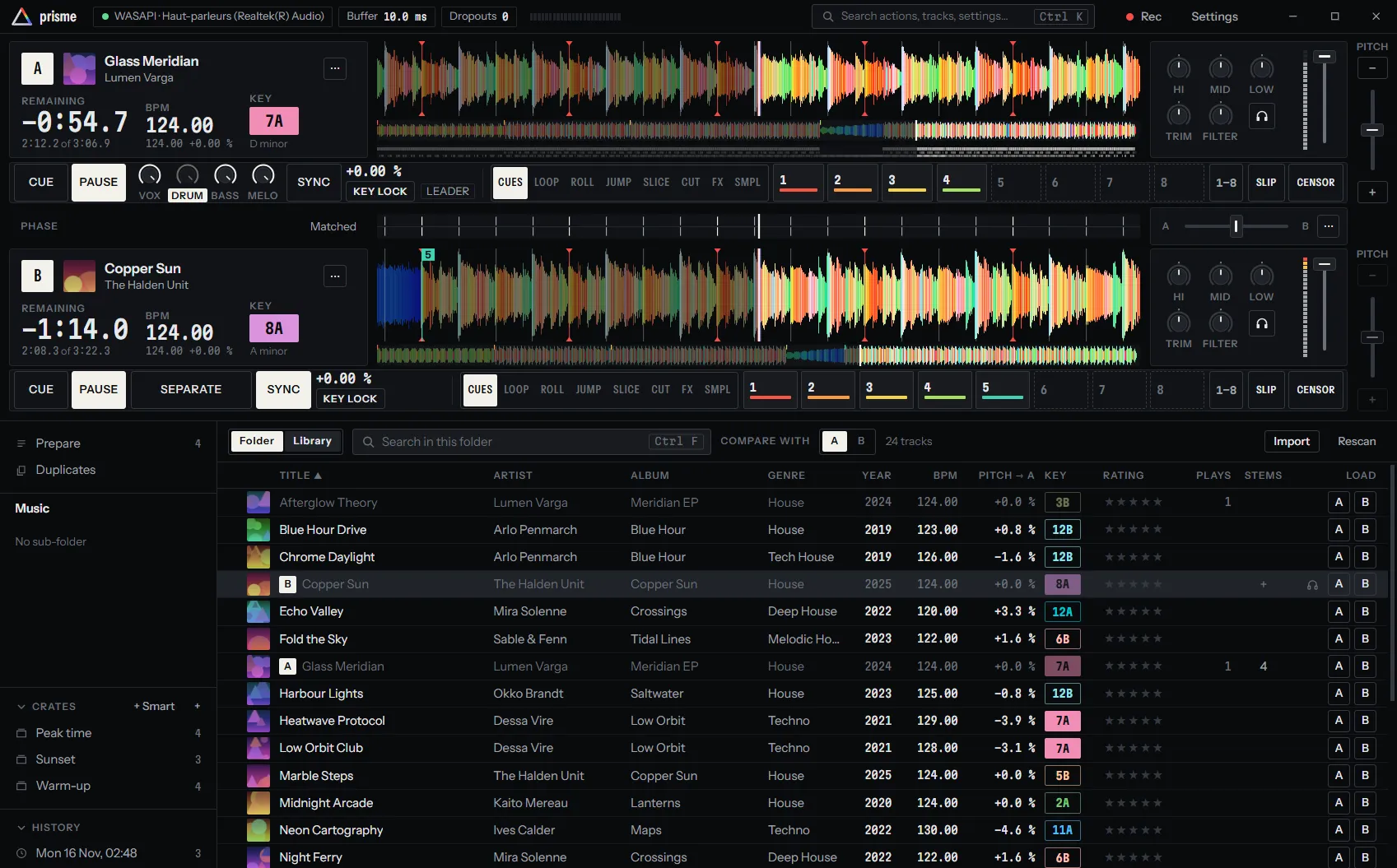
The main screen reads from top to bottom: the title bar, a lane per deck with the phase strip after the first, then the library. Deck A is always on top or on the left, deck B under it or on its right.
Title bar
Section titled “Title bar”
From left to right:
- The audio health: the driver and the device the audio plays on, the Buffer length, the inputs open for turntables, and the Dropouts counter, amber from the first dropout. When something is wrong, a chip says so: audio stopped, audio device lost, reconnecting…, library not saved. Each is explained in Sound card and latency.
- The master meter: the level of what Prisme sends out.
- The search box, Search actions, tracks, settings…: it opens the command palette, as Ctrl K does.
- Update, when a new version is out: see Updates.
- Rec: records the mix, or an input. See Recording your mix.
- Settings, or Ctrl ,: the sound card, the turntables, the mixer, MIDI controllers, the keyboard shortcuts and the rest. See Settings.
- On Windows and Linux, the window’s minimize, maximize and close buttons. On a Mac, the usual three lights at the top left.
Drag the empty parts of the title bar to move the window.
A deck’s lane
Section titled “A deck’s lane”Each deck has a lane, read from left to right: its panel, its waveform, its channel when the software mixer runs, and its pitch fader at the end. Under them, a rail holds what plays the deck and its pads.
A track dragged from the library onto a lane is loaded on that deck.
The deck panel
Section titled “The deck panel”- The letter of the deck, filled while it plays, outlined while it is stopped. With an external mixer, a thin meter beside it shows the level sent to the deck’s outputs.
- The cover, the title and the artist of the track, or No track loaded.
- Who drives the deck, when turntables are set up: a light for the timecode signal (green when locked, hollow amber when unsteady, hollow red when lost), and INT (the deck plays by itself), REL (the record drives the speed), ABS (the record drives the speed and the position) and THRU (the deck plays its input as it comes, a real record or a CD player). See Vinyl control modes.
- REV and MUTE, only while the track plays backwards or the channel is muted: press to undo.
- ⋯, the deck’s options: the motor (BRAKE, SPINBACK), jumps to the START or the END, reverse, mute, repeat, the range of its tempo fader, and fader start on the software mixer. See Performance tools.
Under them, three readouts made to be read from a step away:
| Readout | Large | Small |
|---|---|---|
| Remaining | The time left | The time played, of the length |
| BPM | The tempo played | The track’s own tempo and the pitch applied |
| Key | The key heard, in Camelot notation, coloured on the wheel | Its name |
The remaining time turns amber in the last 30 seconds of the track and blinks red in the last 10, the only blinking of the screen. A dot by BPM or Key means you corrected the grid or the key; the Key label turns amber when the pitch or a key shift moved the key heard away from the track’s.
Click the BPM and key readouts to open the editor of the beat grid, key and key shift. See Analysis.
The waveform
Section titled “The waveform”The large view scrolls around the playhead, the one white line of the screen, and shows ten seconds of real time whatever the tempo. Its height is the level; its colour is the balance of the bands mixed as light: the bass lights it red, the mids green, the highs blue, so a kick reads red, a voice green-yellow, hi-hats blue. What has played is dimmed.
Across it:
- a fine line on each beat of the grid, the first beat of each bar in red with a small arrow above and below;
- the hot cues, a line and a numbered flag in the cue’s colour; the main cue, flagged C;
- a loop, a lit band between two lines; a stored loop not playing, two grey lines.
Under it, the overview shows the whole track: the part played dimmed, the cues as ticks, the position lit. Once the track is separated into stems, a lane per part shows where the vocals, drums, bass and melody play.
With the mouse or a finger:
| Gesture | Where | What it does |
|---|---|---|
| Click | Large view | Jumps there (with a mouse only: a finger never makes the track jump) |
| Slide at once | Large view | Nudges the track, as the edge of a jog wheel: a playing track is pushed or held back for a moment, a stopped one moved |
| Press, hold still a moment, then slide | Large view | Puts your hand on the record: the deck follows your hand, as a record scratched, and plays on when you let go |
| Press and slide | Overview | Jumps there, then moves through the track with your hand |
A deck in THRU says which inputs it plays as they come. An empty deck says Load a track from the library.
The channel
Section titled “The channel”With the software mixer, each lane has a channel between the waveform and the pitch fader:
- HI, MID and LOW, the three bands of the EQ. Click a knob’s label to kill its band, click again to bring it back.
- TRIM, the gain before the EQ, ±12 dB.
- FILTER: to the left a low-pass, to the right a high-pass.
- The headphones button: lit while the deck is heard in the headphones. Double-click it to hear this deck alone.
- The level meter and the fader of the channel.
Double-click a knob to bring it back to its default. See The mixer.
The pitch fader
Section titled “The pitch fader”At the end of the lane, where a turntable has it and the same way up: faster is down. The − and + keys move the tempo by 0.1 %, and keep going while held.
When a record or sync holds the tempo, the fader cannot be moved: it shows the pitch played. On a record, the range of the fader takes the place of − and +, and a notch marks where to bring the turntable’s own pitch to match the other deck.
The rail
Section titled “The rail”Under the panel and the waveform, from left to right:
- CUE and PLAY (PAUSE while it plays). A deck on a record has no such keys: the record plays it.
- Separate, which splits the track into stems; once separated, a knob per part, its name muting it. See Stems.
- SYNC: tap to lock to the leader, hold to match its tempo and beats once. See Sync and tempo.
- The pitch played (double-click to reset it), on a record the pitch to set on the turntable (→ +1.2 %), KEY LOCK, and LEADER on the deck the others follow.
- The pads: a mode (CUES, LOOP, ROLL, JUMP, SLICE, CUT, FX, SMPL), eight pads, the key to the other page of pads where the mode has two (1–8, 9–16), and the keys that go with the mode: the loop keys, slip and censor, the knobs of the effects or of the sampler. See Hot cues, Loops, Effects and The sampler.
When the window is narrower than 1400 pixels, the rail tightens: narrower keys, smaller stem knobs and pad labels.
Phase strip
Section titled “Phase strip”Between the first two lanes, the phase strip shows the beats of deck A along its top and those of deck B along its bottom, around the playheads and at the scale of the waveforms. When the beats meet, the strip says Matched; otherwise it tells by how many milliseconds B is ahead or behind. While both play, it warns when B will be a sixteenth off A’s beat at the present tempos, and Off the beat: adjust the pitch once it is. With four decks, it compares the first two decks that play, and names them.
With the software mixer, the strip also holds:
- the crossfader, between A and B;
- MIC, the microphone’s key, when a microphone is set up;
- ⋯, the menu of what is set once an evening: the master and its balance, the booth, the limiter, the crossfader’s curve, the headphones, the microphone and the aux line.
See The mixer and Microphone and aux inputs.
Library
Section titled “Library”The library fills the rest of the window.
On the left, the lists:
- Prepare, the tracks lined up for the set, which Auto DJ can mix by itself;
- Duplicates, the tracks that look like the same song;
- your music folders, under Music;
- Crates, with + Smart for a smart crate and + for a crate;
- History, the tracks played for 30 seconds or more, set by set.
Above the tracks, the toolbar: whether to search the open list or the whole Library, the search box (Ctrl F), Compare with, the deck the keys and the pitch column are compared with, the number of tracks, the progress of the analysis and of the separation, Import from Serato or rekordbox, and Rescan.
The tracks, one per row. Right-click the column headers to choose the columns. At the end of each row, the headphones button previews the track in the headphones without loading it, and a button per deck loads it there. Tracks played tonight are dimmed, never hidden.
See Browsing and searching, Crates and Auto DJ.
Over the screen
Section titled “Over the screen”- Settings open in a window over the main screen, with a sidebar of pages and a search over every setting. See Settings.
- The command palette, Ctrl K, finds any action, setting, crate or track. See Keyboard and command palette.
While either is open, the keyboard shortcuts of the decks and the library wait.