
Phone and tablet
On a phone or a tablet, Prisme runs the same engine and the same library as on a computer, laid out for the fingers. The decks follow what is plugged in: with nothing, you play them as a small table under your thumbs; with a controller or turntables, they turn into a display to read from a step away. Prisme is available on Android for now: see Install Prisme.
The screen
Section titled “The screen”At the bottom, three tabs: Decks, Library and Settings.
At the top, a bar with:
- the audio: the driver, the device and the length of a period, with a green light; or audio stopped, or audio device lost, reconnecting…;
- Controls, on the Decks tab, which switches between the two ways of showing the decks (see below);
- the search button, which opens the command palette over the whole screen;
- Rec, which asks what to record: the master of the software mixer, or the inputs of the sound card a hardware mixer plays into. See Recording your mix.
The back gesture closes what was opened last: a panel, the palette, a page of the settings.
Several fingers work at once: you can press both PLAY keys together, or hold a pad while moving a fader.
Decks: played with the thumbs
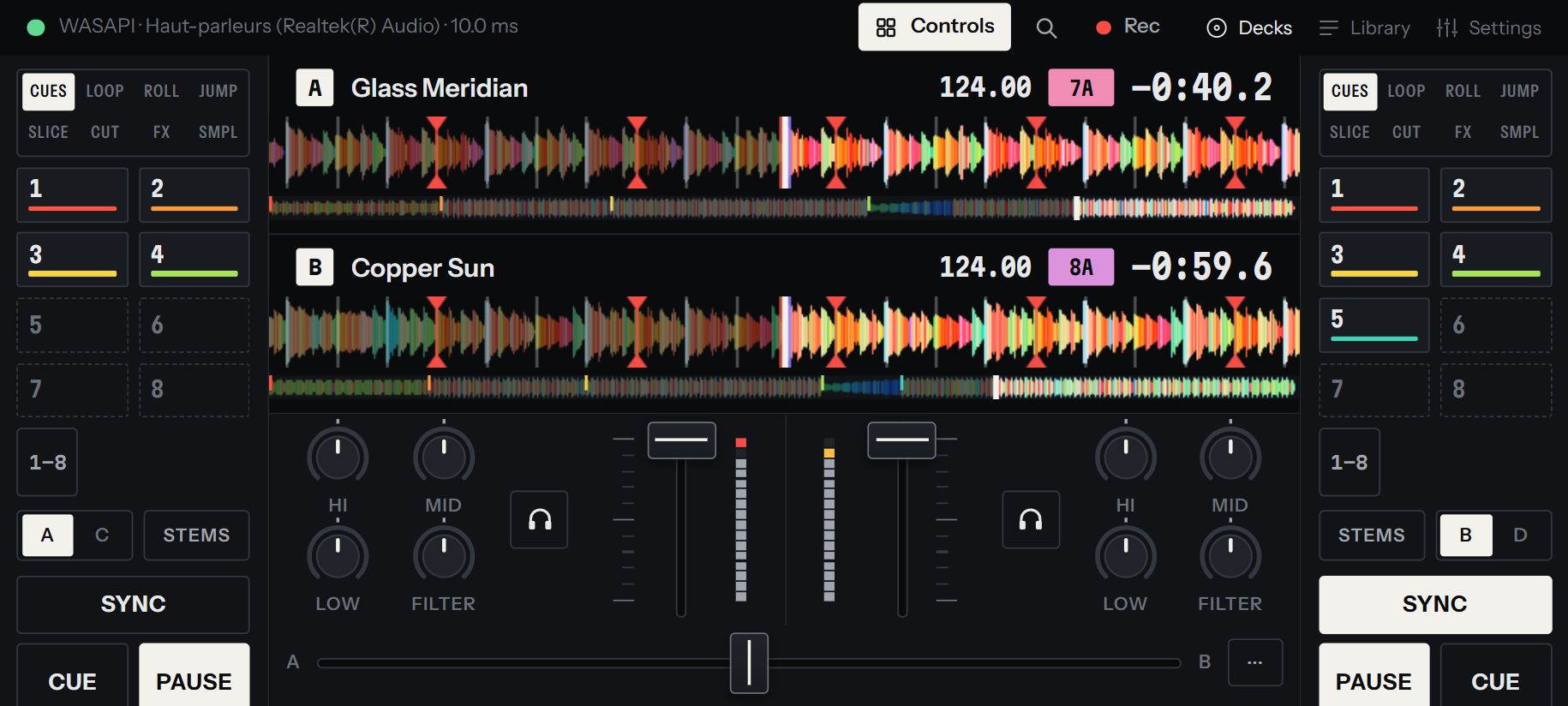
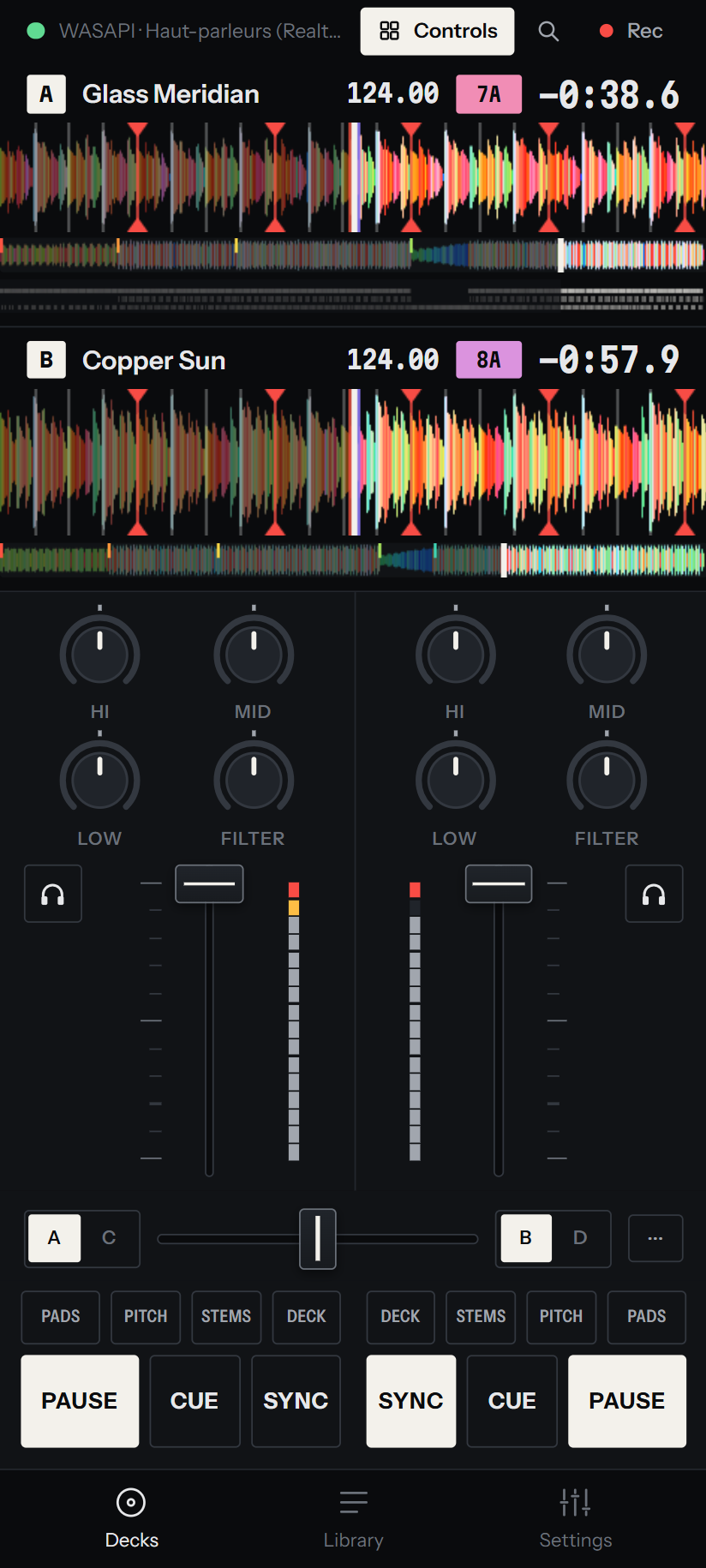
Section titled “Decks: played with the thumbs”With no controller in use and no deck on a record, the Decks tab is a table, its Controls key lit:
- the waveforms of the two decks at the top, each with its title, its BPM, its key and its remaining time;
- with the software mixer, a channel per deck in the middle: EQ and filter, the fader with its level, and the headphones button. The crossfader runs under them, between A and B, with MIC when a microphone is set up and ⋯, the mixer’s sheet (master level and balance, booth, limiter, crossfader curve, headphones, microphone, aux line);
- under each thumb, the keys of its deck: CUE, PLAY and SYNC, PLAY in the corner. Deck B’s are the mirror of deck A’s.
Upright
Section titled “Upright”Held upright, each side has four keys over its deck’s CUE, PLAY and SYNC. Each opens a panel floating over the table, with the deck’s letter at the top and a key to close it:
| Key | Opens |
|---|---|
| PADS | The deck’s pads, their modes and their keys, as on a computer. See Hot cues. |
| PITCH | The tempo fader across the screen, − and + to bend the tempo while held, 0 to bring it back to the track’s, and KEY LOCK. On a record, the pitch to set on the turntable. |
| STEMS | A knob per part of the separated track, its name muting it; Separate if the track is not separated yet. See Stems. |
| DECK | The deck’s settings (see below). |
Sideways
Section titled “Sideways”Held sideways, the pads and the keys of each deck go down its side of the screen, A on the left and B on the right, the table between them, SYNC over CUE and PLAY. STEMS stays a key on each side; touch a deck’s title to open its settings.
Four decks
Section titled “Four decks”With four decks, A and C share the left side, B and D the right. A key with their letters, on each side, chooses the deck that side plays.
Decks: read from a step away
Section titled “Decks: read from a step away”When a controller is in use, or a deck is driven by a record, your hands are elsewhere: the Decks tab becomes a display.
- Each deck is large: its letter, cover, title and artist, its key, a wide waveform, then the remaining time in large figures, who drives it (REL, ABS or THRU, coloured by the timecode signal), REV or MUTE when on, the BPM and the pitch.
- The phase strip sits between the two decks.
- Under them, the library peeks out: its search and the tracks, ready to load.
On a screen too low, a phone held sideways, each deck keeps its waveform and a single line over it.
Press Controls to switch to the table anyway, or back. Your choice is kept, at the next start too: Prisme no longer chooses by itself.
A deck’s settings
Section titled “A deck’s settings”Touch the title of a deck, or DECK, and its settings rise from the bottom:
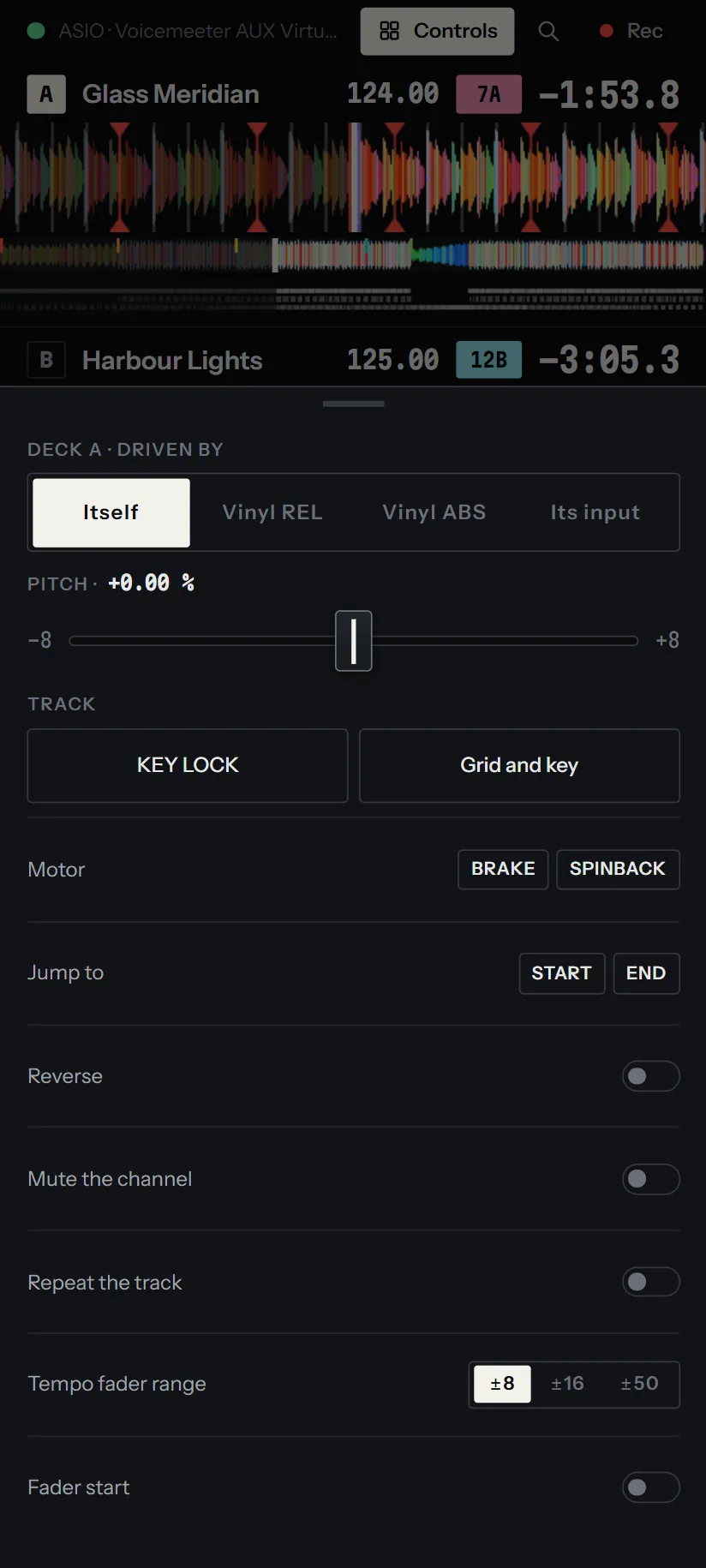
- Deck A · driven by: Itself, Vinyl REL, Vinyl ABS or Its input, when turntables are set up, with what the timecode signal says. See Vinyl control modes.
- Pitch, the tempo fader across the screen.
- Mixer, outside the table with the software mixer: wide faders for the EQ, the filter and the volume.
- Track: KEY LOCK, Grid and key to correct the beat grid and the key, and, outside the table with the software mixer, the headphones button.
- The deck’s options: the motor, the jumps to the start and the end, reverse, mute, repeat, the tempo range.
Touch the bar at its top, touch outside it, or use the back gesture to close it.
The waveform under a finger
Section titled “The waveform under a finger”The waveform of each deck works as a jog wheel, for any finger:
| Gesture | What it does |
|---|---|
| Slide at once along the waveform | Nudges the track, as the edge of a jog wheel: pushed ahead or held back while playing, moved while stopped |
| Press, hold still a moment, then slide | Your hand on the record: the deck follows your finger, as a record scratched, and plays on when you lift it |
| Press and slide along the overview | Jumps there and moves through the track |
A tap on the large waveform never makes the track jump, since a finger may land there by mistake. To jump, use the overview.
Library
Section titled “Library”The Library tab lists your tracks in large rows: the cover, the title and the artist, the BPM, and the key, filled in when it fits the deck you compare with. A folder’s sub-folders come first, and Parent folder goes up.
Above the rows: the search, the sort order, then keys to search the list you are in or the whole Library, to open Prepare, and Browse…, which rises with the same lists as the side of the library on a computer (folders, Prepare, Duplicates, crates, History) and Import from Serato or rekordbox.
| Gesture | What it does |
|---|---|
| Slide a track to the right | Loads it on deck A |
| Slide a track to the left | Loads it on deck B |
| Touch a track | Opens what you can do with it: load it on a deck, add it to the prepare list or a crate, colour, genre, stems |
| Headphones key of a row | Previews the track in the headphones; touch it again to stop |
A track slid only part of the way comes back without loading. The line at the top of the list reminds you of the directions: Slide a track right for A, left for B.
Prisme reads the shared Music folder of the phone. Copy your tracks there from a computer, or with the phone’s file manager. See Adding your music.
Settings
Section titled “Settings”The Settings tab lists the pages of the settings, each with what it holds, under a search over every setting. Touch a page to open it; the back arrow or the back gesture returns to the list. The pages are those of a computer, but for Keyboard shortcuts. See Settings.
On a phone, Prisme mixes by itself: the software mixer is the default, the master on outputs 1-2.
The phone alone plays through its speaker or its headphones socket: there is no second pair of outputs for the headphones, so you cannot cue a track before the crowd hears it. For that, plug in a USB sound card with four outputs: the master goes out on 1-2, the headphones on 3-4. Set them in Settings > Mixing > Headphones. See Headphones and preview.
USB sound cards
Section titled “USB sound cards”A USB sound card plugged into the phone takes over the outputs: with the AAudio driver, Android sends the sound to it.
Some cards reach Android with only part of their channels, or with inputs that stay silent. Then let Prisme drive the card itself:
-
Open Settings > Audio and choose USB in Driver type.
-
In USB sound card, choose your card, or The first plugged in.
-
Press Apply. Android asks whether Prisme may use the card: allow it.
-
For turntables, open Settings > Turntables and turn on Turntables plugged into the inputs of this driver. Android asks whether Prisme may record audio: allow it, since the timecode comes in as a recording.
With USB, Prisme uses all the channels of the card: its four inputs for two turntables, its four outputs for an external mixer or for the master and the headphones. See Sound card and latency and Setting up vinyl control.
Controllers
Section titled “Controllers”A MIDI controller plugged in by USB is read through Android’s own MIDI service, with the same profiles as on a computer. This has not been tried on a device yet: tell us how it goes. See Controllers.
With the screen off
Section titled “With the screen off”While a deck plays, Prisme keeps playing with the screen locked or another app in front, and shows a player on the lock screen and in the notifications: the track heard, its cover, and a key to play or pause each deck.
For a gig, turn off Settings > DJ > Controls on the lock screen: nothing in a pocket can then stop a deck.