
Keyboard and command palette
Your left hand plays deck A, your right hand deck B, the same keys with Shift held play decks C and D, and the arrows browse the library. Whatever has no key is a few letters away in the command palette, Ctrl K.
On a Mac, ⌘ takes the place of Ctrl in every shortcut on this page.
Your keyboard’s layout
Section titled “Your keyboard’s layout”The shortcuts go by the place of the keys, not by the letters printed on them: the keys of deck A sit under the left hand whatever your layout. The tables below name the keys of a US (QWERTY) keyboard. On a French AZERTY keyboard, for example, deck A’s play key is the one printed S and its cue key the one printed Q.
The tables on this page give the keys Prisme starts with. Settings > Keyboard shortcuts lists the keys in use, yours included, as printed on your own keyboard, and changes them: see Changing the shortcuts. F1 opens that page, and closes it.
| Action | Deck A | Deck B |
|---|---|---|
| Hot cues 1 to 4 | 1 2 3 4 | 7 8 9 0 |
| Hot cues 5 to 8 | Q W E R | U I O P |
| Cue (hold to preview) | A | J |
| Play / pause | S | K |
| Sync | D | L |
| Loop 4 beats / exit | F | H |
| Halve the loop | C | , |
| Double the loop | V | . |
| Slow down while held | Z | N |
| Speed up while held | X | M |
- Hot cue keys: an empty hot cue is set where the deck plays; a hot cue already set jumps there. See Hot cues.
- Cue works as the cue key of a CDJ. See Playing a track.
- Sync locks the deck to the leader, or lets it go. See Sync and tempo.
- Slow down and Speed up bend the tempo for as long as you hold the key, to nudge the beats into place; let go, the deck goes back to its tempo.
Decks C and D
Section titled “Decks C and D”Decks C and D take the keys of decks A and B with Shift held, as the second layer of a four-deck controller: Shift S plays or pauses deck C, Shift K deck D, Shift 1 is deck C’s first hot cue. They act only while Prisme shows four decks.
Library
Section titled “Library”| Action | Keys |
|---|---|
| Previous track | ↑ |
| Next track | ↓ |
| Load on deck A | Shift ← |
| Load on deck B | Shift → |
| Instant double on deck A | Ctrl Shift ← |
| Instant double on deck B | Ctrl Shift → |
| Load on a free deck | Enter |
| Preview in the headphones / stop | Space |
| Remove from the crate or prepare list | Del |
| Add to the prepare list | Ctrl P |
| Select all the tracks | Ctrl A |
| Clear the selection | Esc |
| Search | Ctrl F |
- Load on a free deck takes the first deck with no track, or deck A if every deck has one.
- Instant double loads on the deck the track of the other deck of its pair, at the same place, playing if it plays.
- Remove takes the selected tracks out of the crate or the prepare list you are in. It never deletes a file.
- On a Mac keyboard, Del is fn Delete.
General
Section titled “General”These work everywhere, even while you type in a field or with the settings open. A key of your own for one of them works there too if it holds Ctrl or is a function key (F1 to F12); a letter alone types.
| Action | Keys |
|---|---|
| Command palette | Ctrl K or Ctrl Shift P |
| Settings | Ctrl , |
| Keyboard shortcuts | F1 |
How the keys behave
Section titled “How the keys behave”- A key held does not repeat. Keys that act while held (cue, the bends) stop when you let go, or when the window loses the focus.
- While you type in a search box or any field, the deck and library keys type instead.
- While the settings or the palette are open, the deck and library keys wait. Close them with Esc.
- In the library’s search box, Esc leaves the box, so the keys play again.
- In the settings’ search box, Esc first empties the search, then closes the settings.
Command palette
Section titled “Command palette”The palette finds any action, setting, crate or track by a few words, and runs it.
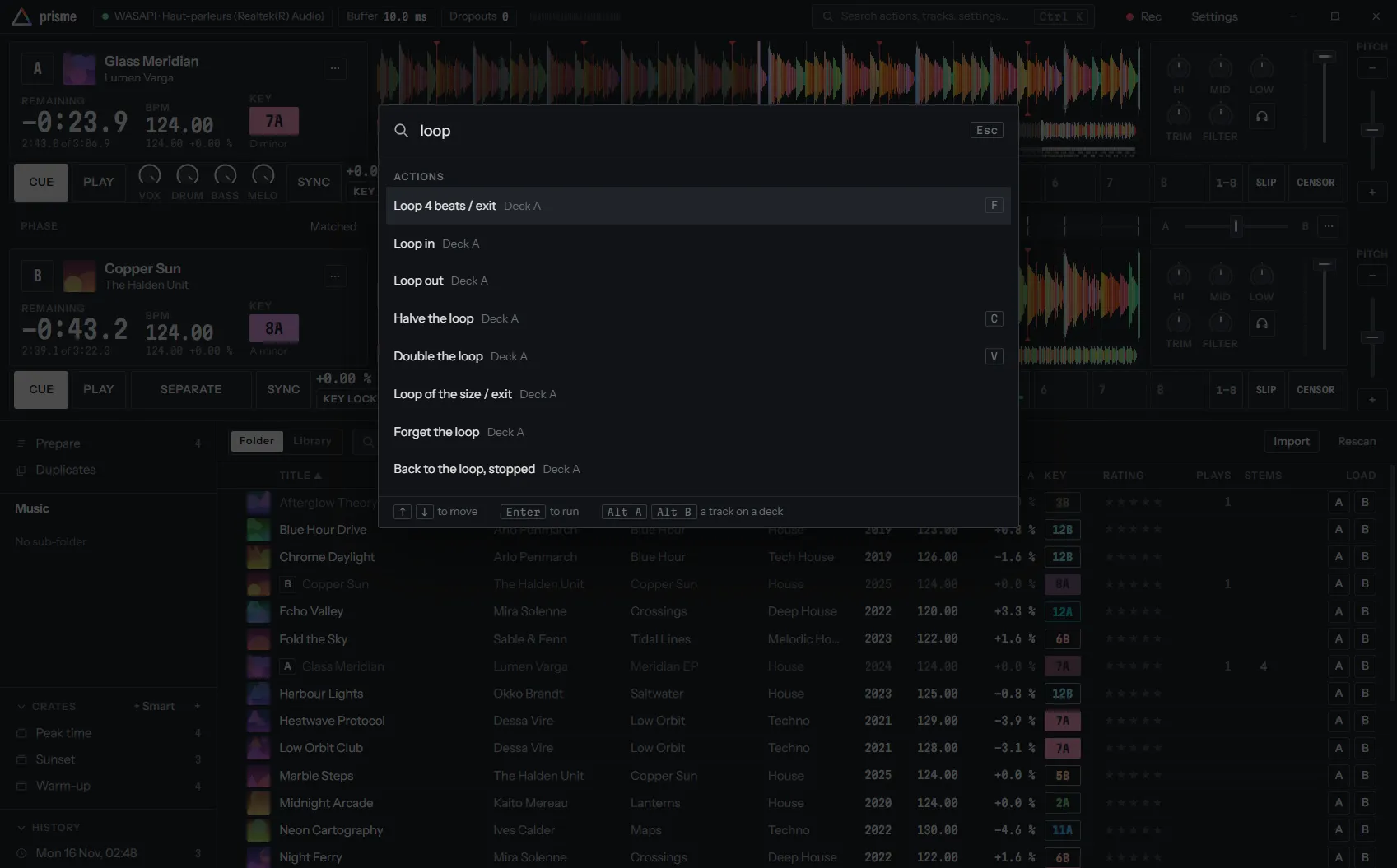
Open it with Ctrl K, Ctrl Shift P, or the search box in the middle of the title bar. Then type. It finds:
| Section | What it holds | Running it |
|---|---|---|
| Actions | Every action done with a press, for the decks in use, the mixer, the library and the rest, with its key when it has one (yours, if you changed it) | Does it, once |
| Settings | Each page of the settings, and each setting | Opens the settings on it, the setting pointed out |
| Crates | Your crates, with their number of tracks | Opens the crate in the library |
| Tracks | Tracks of the whole library, from two letters typed, with their BPM and key | Loads the track on a free deck |
Before you type, the palette lists the pages of the settings.
Every word you type must appear in the line, in its name or in the group under it (Deck A, Mixer, Library…), in any order: kill bass finds the bass kill of each deck, quantize the action and the setting, latency the setting that measures it. Matches at the start of a word, and in the name, come first.
| Key | In the palette |
|---|---|
| ↑ ↓ | Move through the lines |
| Enter | Run the line |
| Alt A, Alt B | Load the track of the line on deck A or B |
| Esc | Close |
Each track line also has a button per deck, to load it there with the mouse.
On a phone, the search button of the top bar opens the palette over the whole screen. See Phone and tablet.
Changing the shortcuts
Section titled “Changing the shortcuts”Any action done with a press can have a key of your own, in Settings › Keyboard shortcuts. The page lists the actions that have a key, by group, with their keys as printed on your keyboard.
-
To reach an action without a key (a brake, a roll, an effect), type a few words of its name in Find any action, to give it a key: every action whose name or group holds them is listed.
-
Click its key (or No key) on its row. It reads Press a key….
-
Press the key, alone or with Ctrl or Shift. It replaces the action’s keys at once, and works right away.
To give up, press Esc, or click Press a key… again: Esc itself cannot be given to an action this way. Alt belongs to the palette and cannot be part of a key.
If the key already belongs to another action, nothing changes yet: the row says Already the key of: and the key with its action, such as Ctrl + K: Command palette (General). Take it moves the key to the new action and takes it off the other one; Cancel leaves both as they were. A key is never on two actions.
| Button | What it does |
|---|---|
| The key itself | Clicked, waits for the key the action gets. |
| × | Shown on the row under the pointer: takes the action’s key off. The action stays listed, with No key, so you can give it one back. |
| ↺ | Shown where an action’s key is not Prisme’s: gives it its key from Prisme again. If another action has that key now, you are asked as when changing a key. |
| Reset all | At the top of the page: every action gets its key from Prisme again. Press Reset every key to confirm, or Cancel. |
Your keys are kept with your settings and only for the actions you changed: the others follow Prisme, keys added in a later version included. If such a new key is one you gave another action, yours wins. The command palette, the title bar and the library’s search box show the keys in use.
For keys on hardware, map a MIDI controller instead: see MIDI learn.